Create your account
Go to Sign in and continue with Google or Microsoft. There is no separate password: we use your provider’s secure sign-in and never see your password.
New accounts get a 7-day trial of every feature, then stay on the Free plan (one mailbox, 50 emails a month) unless you upgrade. No card is needed to start.
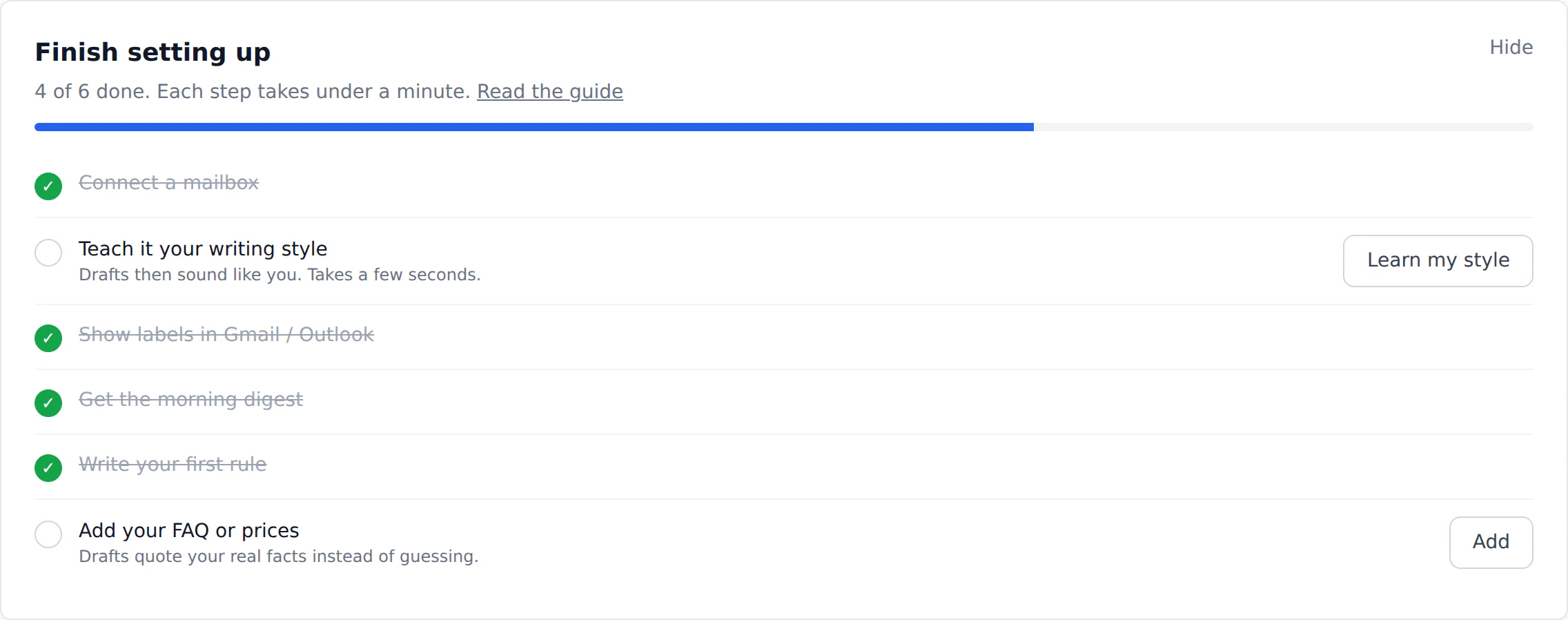
Once you’re in, a Finish setting up checklist at the top of your inbox walks you through the rest of this guide. Each step ticks itself off when it’s done.
Connect your mailboxes
- Open Accounts in the sidebar.
- Choose + Connect Gmail or + Connect Outlook.
- Approve the permissions. They are listed, with the reason for each, on our Trust page.
Connect as many mailboxes as your plan allows (one on Free, unlimited on paid plans). They appear in one inbox, and the same email arriving in two of them is shown once.
What happens in the first hour
Mail is checked every five minutes. Each new email is read once, put in a category, given a priority from 1 to 10 with a one-line reason, and, if it needs an answer, given a drafted reply. Low-priority mail (2 or below) is archived for you; change or switch that off in Settings.
Reading the inbox
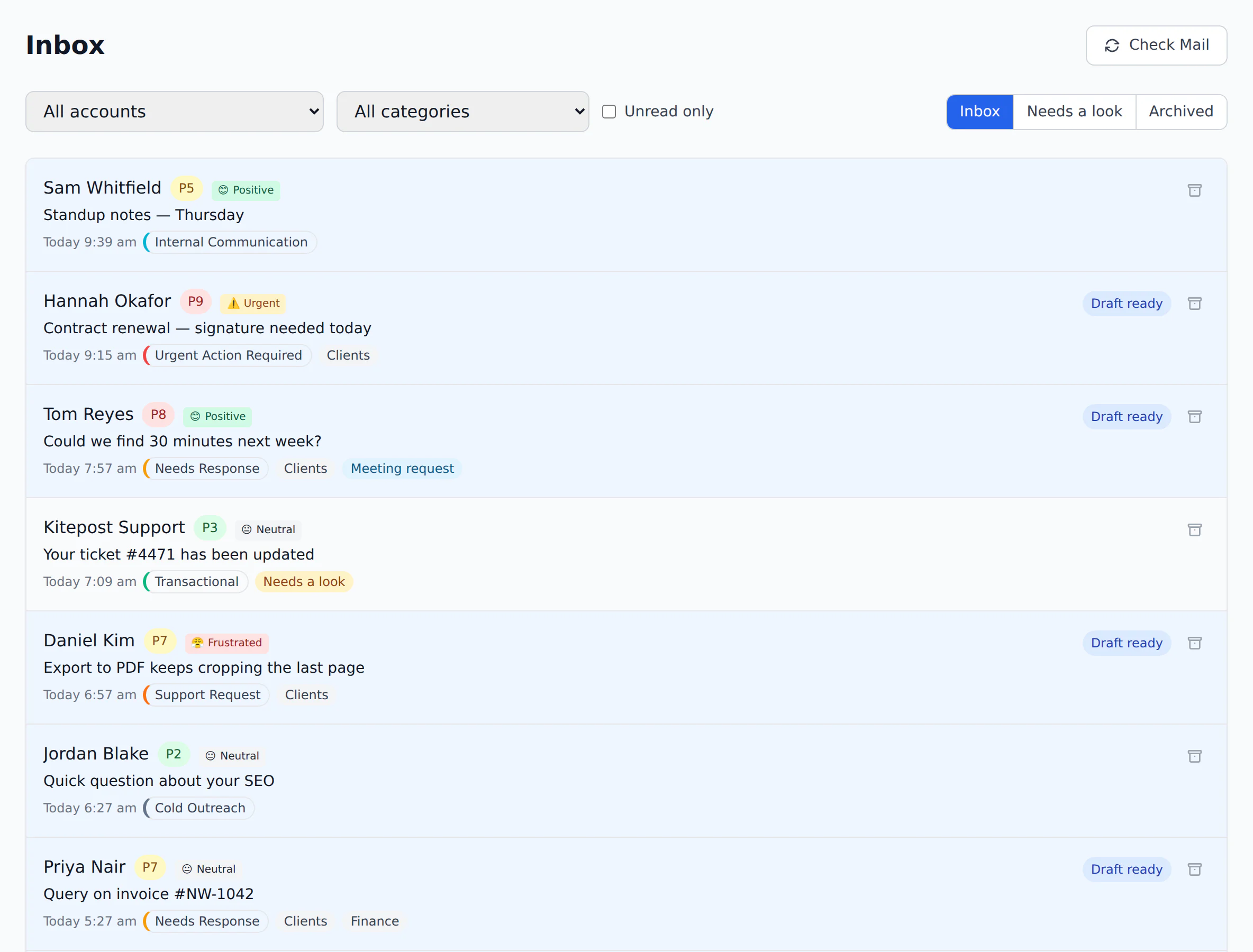
- The number is the priority. 8 or above means today; 1–2 means it can wait forever.
- Open an email to see why it scored that, any action items, the sender’s tone, and the draft.
- Wrong category? Change it on the email. If it was marked Cold Outreach, that sender is remembered as safe.
- Want it sooner? Press Check Mail at the top of the inbox to check now.
Teach it your writing style
In Settings → Writing-style anchor, choose Learn my style. It reads a sample of your recent sent mail and keeps a short description of how you write (greeting, sign-off, length, tone). Only that description is stored, never the emails.
Labels in Gmail and Outlook
Turn on Settings → Sync to Gmail / Outlook to see triage results in the mail app you already use.
- Gmail gets labels under
Email Triage/: one for the category, plusEmail Triage/Priorityfor anything scored 8 or higher. - Outlook gets categories that start with
Email Triage:. - Archiving here archives there. Mail you archive yourself in Gmail is never pulled back.
- Choose Label my last 30 days to label mail that arrived before you switched it on.
Email Triage/ label in Gmail, it’s simply recreated the next time it’s needed.The daily digest
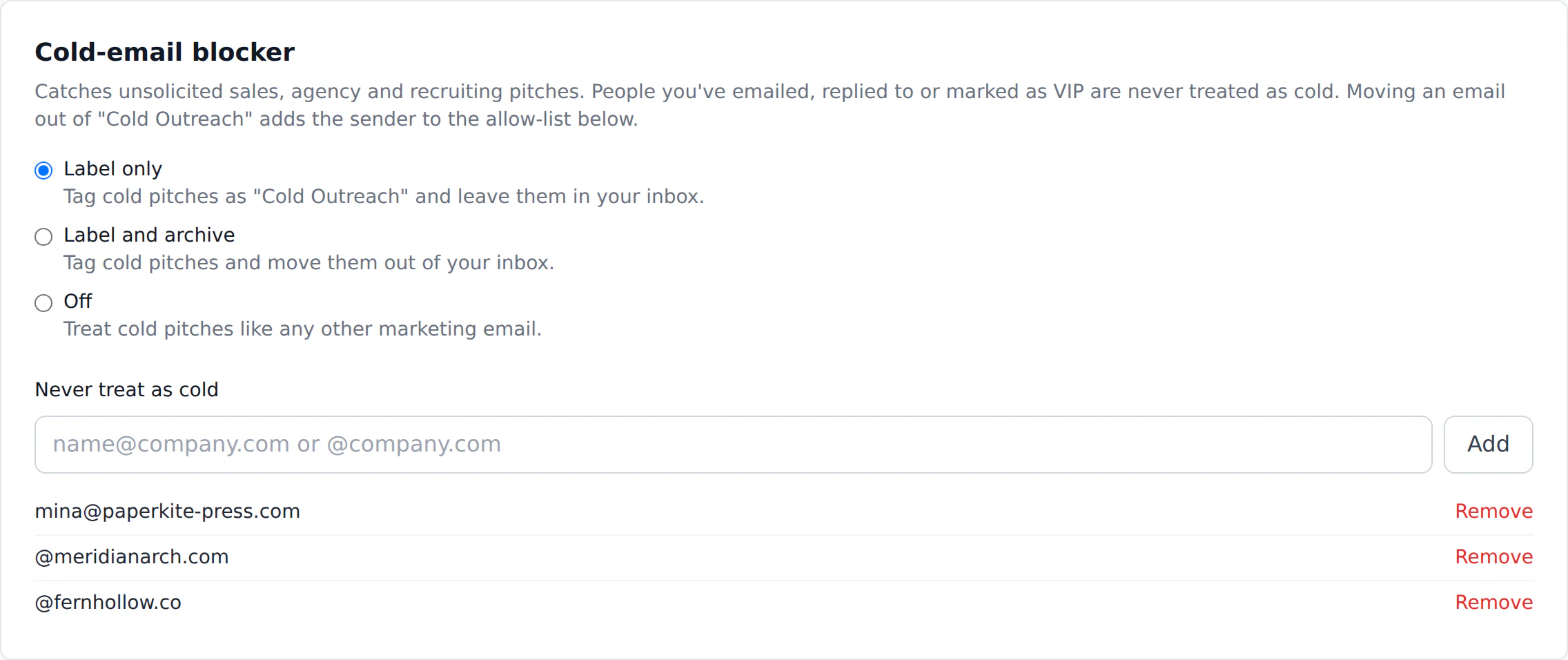
In Settings → Daily digest email, switch it on and pick an hour. It uses your browser’s timezone, which you can change.
Each morning you get one email listing what’s urgent and what needs a reply, each with its reason and a link to the draft, plus how many low-value emails were cleared away. On days with nothing to report, nothing is sent.
The cold-email blocker
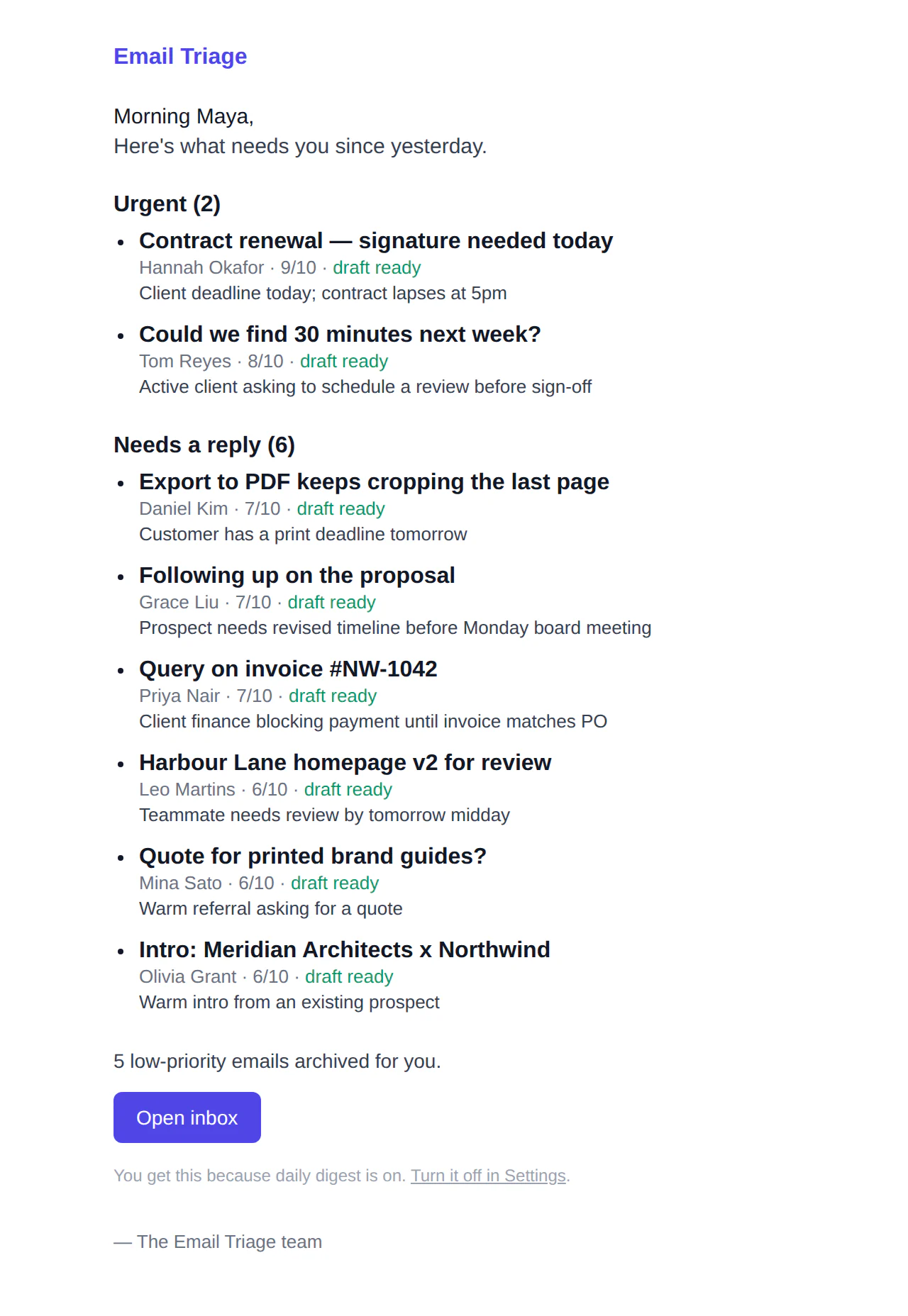
Unsolicited sales, agency, SEO and recruiting pitches are tagged Cold Outreach. In Settings → Cold-email blocker choose what happens to them:
- Label only (the default) keeps them in your inbox, tagged.
- Label and archive moves them out of the way.
- Off treats them like any other marketing email.
Anyone you’ve emailed before (from your Gmail Sent folder), anyone you’ve replied to through Email Triage, and anyone on a positive priority rule is never treated as cold. Add a person or a whole domain such as @supplier.com to Never treat as cold at any time.
Rules in plain English
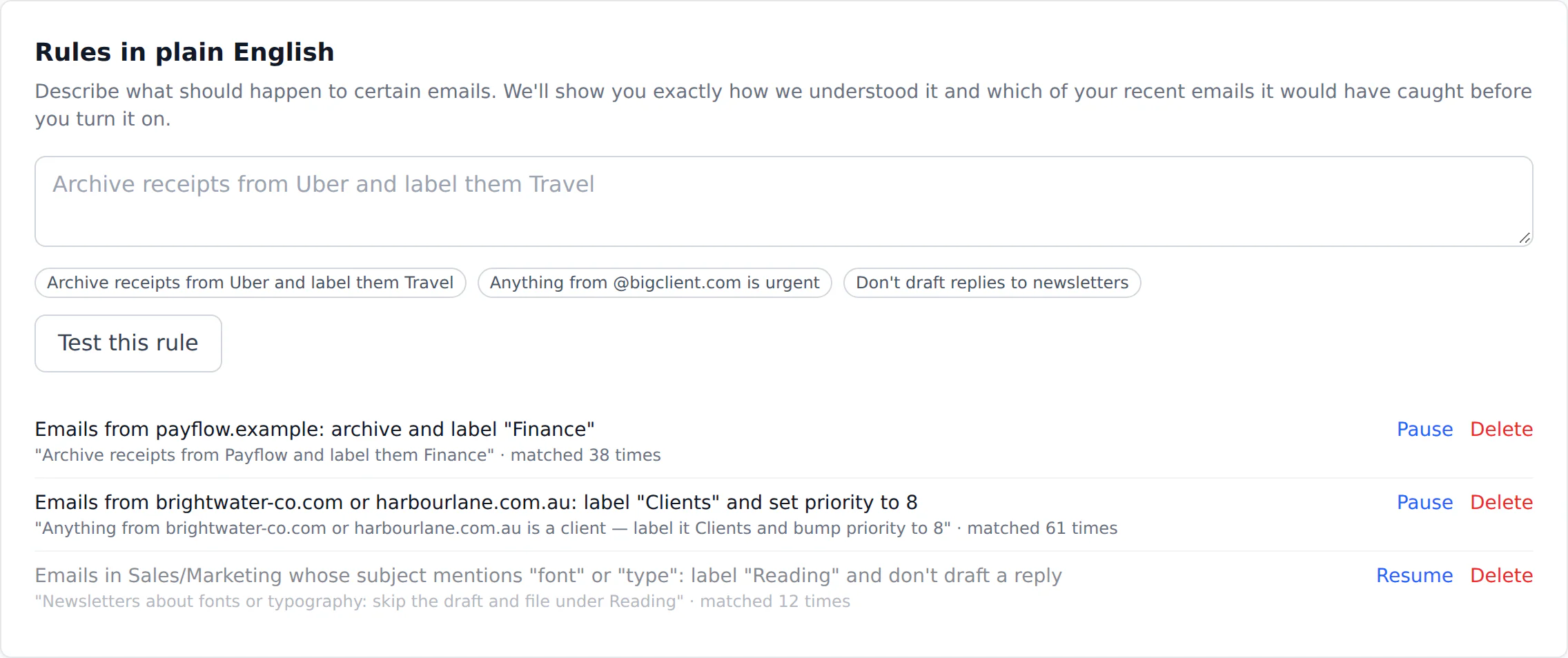
- In Settings → Rules in plain English, type what you want, the way you’d say it.
- Choose Test this rule. You’ll see it restated in plain words and a list of your last 50 emails it would have matched.
- If that’s right, choose Turn on rule. If not, rephrase and test again.
Rules that work well
- “Archive receipts from Payflow and label them Finance”
- “Anything from @bigclient.com is urgent”
- “Emails with invoice in the subject go to Needs Response”
- “Don’t draft replies to newsletters”
A rule can match on sender, domain, words in the subject or body, category and priority, and can set the category or priority, archive or keep in the inbox, add a label, or skip the draft. If part of what you wrote can’t be done, it says so before you turn it on. Pause or delete a rule at any time; each one shows how many emails it has matched.
For quick weighting without wording, Priority rules raise or lower the score for a sender, domain or subject phrase.
Better drafts
Drafts use your writing style and, if you add them, your own facts. In Settings → Knowledge for drafts, add a web page (your FAQ, pricing or policies page) or paste text. Only the few snippets that match each email are used.
Use Try it with a sample question to see which snippets would be picked. When an answer isn’t in your notes or the email, the draft says you’ll confirm instead of guessing.
Under AI Response Preferences you can also set tone, length and a short note about yourself that every draft takes into account.
Meeting times from your calendar
In Settings → Calendar: offer meeting times, choose Connect calendar next to a Gmail account and approve Google’s free/busy permission. We see when you’re busy, never what the meetings are.
Set your working hours, working days and usual meeting length. When someone asks to meet, the draft offers three free times on different days, in your timezone. If they suggested a time, it’s only accepted when you’re actually free.
Telegram and AI assistants
Telegram
In Settings → Integrations, choose Connect Telegram and press Start in the chat that opens. Urgent emails arrive as messages with Archive and Snooze 1 day buttons, and your digest is sent there too. Send /digest any time, or /stop to disconnect.
Claude, Cursor and other MCP clients
Create a token under AI assistants (MCP). Tokens are read-only unless you tick Allow archive/snooze, and are shown once, so copy it straight away. Then add the server to your client:
{
  "mcpServers": {
    "email-triage": {
      "type": "http",
      "url": "https://email-triage.app/api/mcp",
      "headers": { "Authorization": "Bearer et_your_token_here" }
    }
  }
}
Your assistant can then list priorities, search, fetch an email and read the digest (and archive or snooze, with a write token). Revoke a token at any time.
Plans, limits and your own key
| Plan | Price | Emails a month | Adds |
|---|---|---|---|
| Free | $0 | 50, one mailbox | Scores, drafts, labels, digest |
| Pro | $19 | 1,500 | All mailboxes, rules, cold blocker, knowledge |
| Autopilot | $39 | 4,000 | Automatic replies, calendar, Telegram, MCP |
When you reach your monthly limit, new mail still arrives in your inbox; it just isn’t scored or drafted until the month resets or you upgrade. Upgrade, change plan or cancel from Pricing or the billing portal in Settings.
With Bring your own AI key in Settings, AI calls are billed to your own Anthropic account and Pro drops to $12 a month (Autopilot $29). The key is encrypted and never shown again.
Privacy and leaving
- Your email is never used to train AI.
- We store the sender, subject, date and the first 10,000 characters of each email so the app works. Attachments are never stored.
- Every prompt we send to the AI is published on the transparency page.
- Disconnect a mailbox under Accounts, or revoke access in your Google or Microsoft account. Data is removed within 30 days of disconnecting or deleting your account.
The full detail, including every permission and subprocessor, is on the Trust page.
If something looks wrong
No emails are showing up
Give it five minutes after connecting, or press Check Mail in the inbox. If an account shows as disconnected under Accounts, reconnect it; this happens when a password changes or access is revoked.
Emails arrive but have no score
You’ve reached this month’s limit. Upgrading takes effect straight away.
Labels aren’t appearing in Gmail
Check that Sync to Gmail / Outlook is on. Only mail triaged after you turned it on is labelled; use Label my last 30 days for older mail. Labels can take a minute to appear.
The digest didn’t arrive
It’s skipped on days with nothing to report. Otherwise check the hour and timezone under Daily digest email, and your spam folder for the first one.
Something important was marked cold
Move it to the right category. That sender is added to Never treat as cold automatically.
Still stuck?
Contact us. A person reads every message.
Common questions
Does it send emails without asking me?
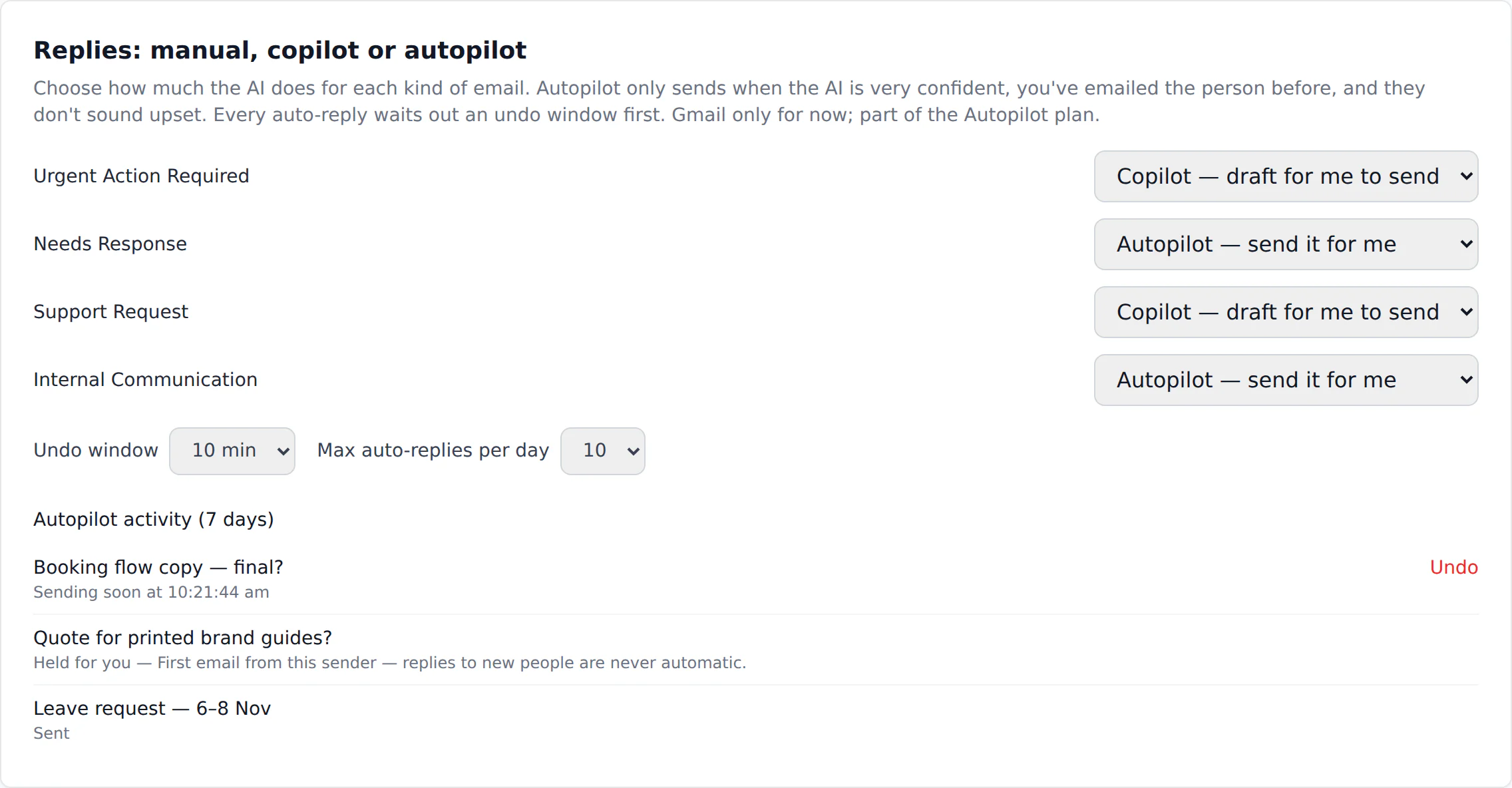
Not unless you switch Autopilot on, and only for the categories you pick. By default every reply is a draft that waits for you.
With Autopilot on, a reply only goes out to someone you have emailed before, when the AI is very confident, the sender isn’t upset, and after an undo window you set.
Will it change my Gmail or Outlook?
Only if you turn on mailbox sync. Then it adds labels that start with “Email Triage/” (categories in Outlook) and archives what you archive in the app.
It never deletes mail, never touches labels you made, and never moves mail you archived yourself back into the inbox.
Is my email used to train AI?
No. Email content is sent to Anthropic’s API only to triage and draft for you, and under Anthropic’s commercial terms API data isn’t used to train their models. We don’t train anything on it either.
Which email accounts work?
Gmail, Google Workspace, Outlook.com and Microsoft 365. You can connect several and see them in one inbox. Autopilot and calendar suggestions currently need a Gmail account.
What happens when I hit my monthly limit?
New mail still syncs and shows in your inbox; it just isn’t scored or drafted until the next month or until you upgrade. Nothing is lost.
Can I use my own Anthropic API key?
Yes. Add it in Settings and the AI calls are billed to your Anthropic account, which drops Pro to $12 a month and Autopilot to $29. The key is encrypted at rest and never shown again.
How do I stop it or delete my data?
Disconnect a mailbox in Settings, or revoke access from your Google or Microsoft account page. When you delete your account or disconnect a mailbox, the stored data is removed within 30 days.
Google warned me the app is unverified. Is that normal?
Google shows that screen for apps that haven’t yet completed its verification for Gmail access. If you see it, choose “Advanced” to continue. Every permission we ask for, and why, is listed on our Trust page.