Your inbox, read before you open it.
Email Triage reads every new email, scores it 1–10 with the reason, files it with labels in your own Gmail or Outlook, and drafts the replies. Mornings start with a short list instead of a long one.
50 emails a month freeNo card neededNever used to train AI
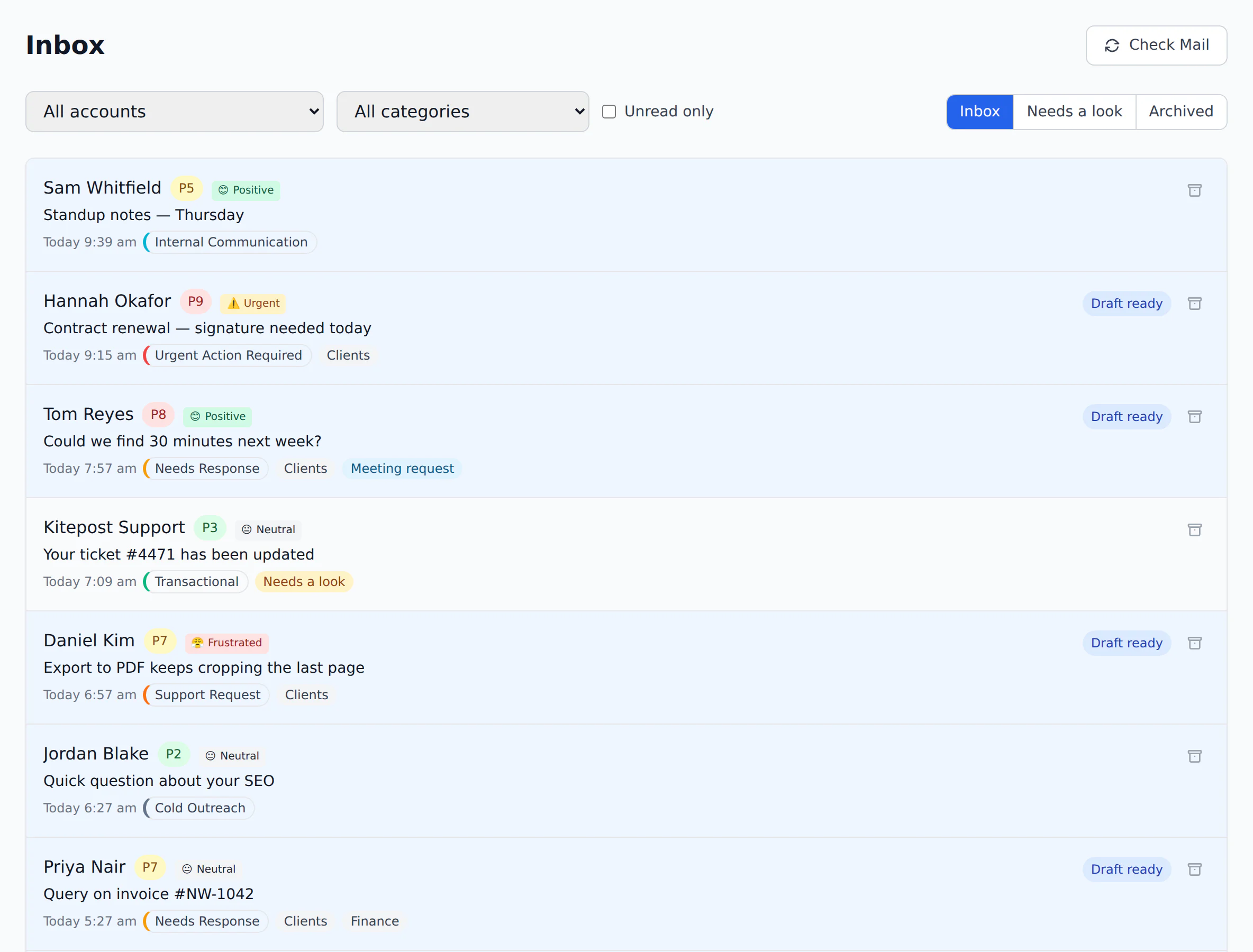
Coffee, one short email, and the inbox is handled.
- 07:00
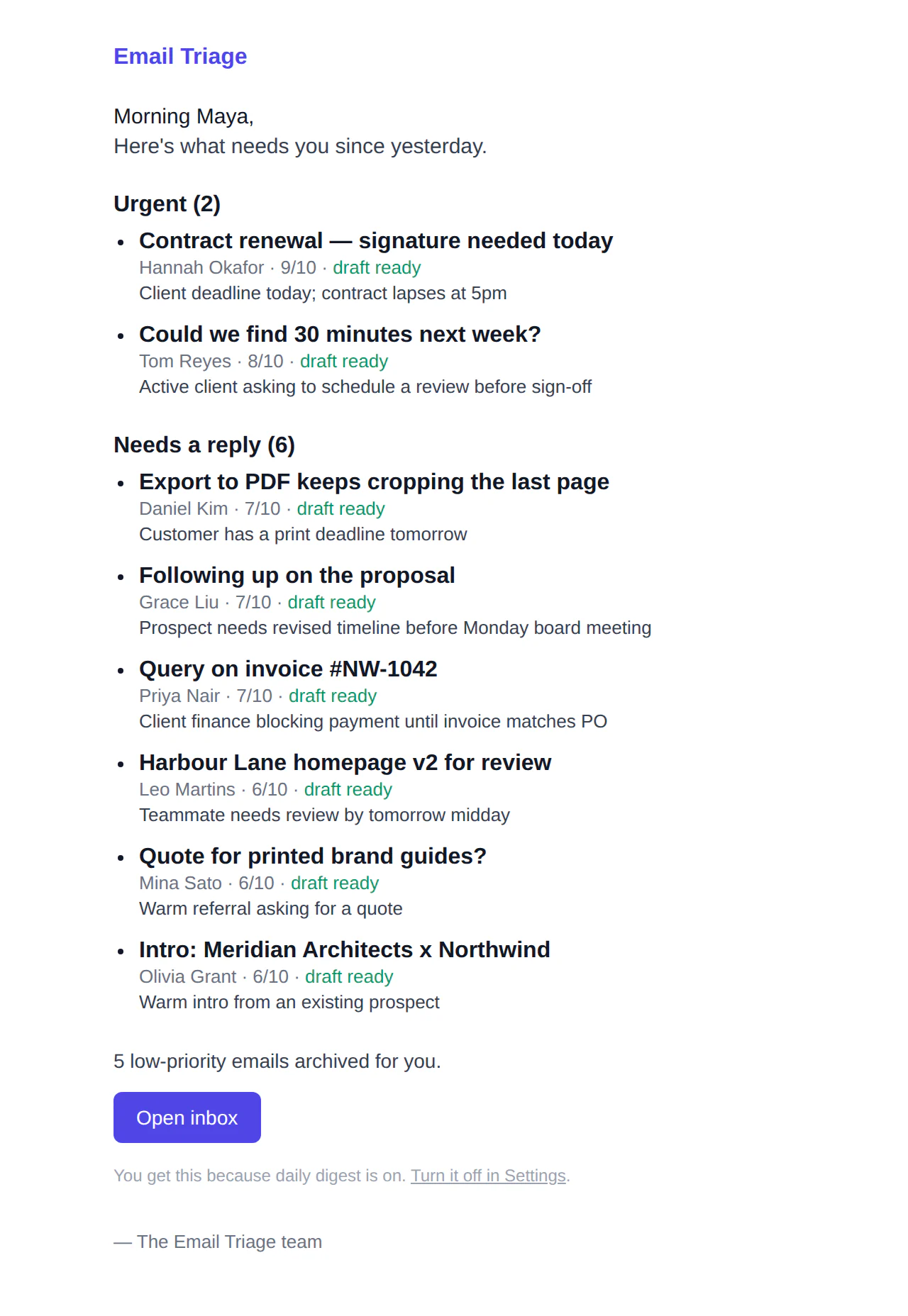
One email tells you what matters
The digest lands at the hour you chose: what’s urgent, what needs a reply, and how much was cleared away overnight. Each line has its reason.
- 07:02
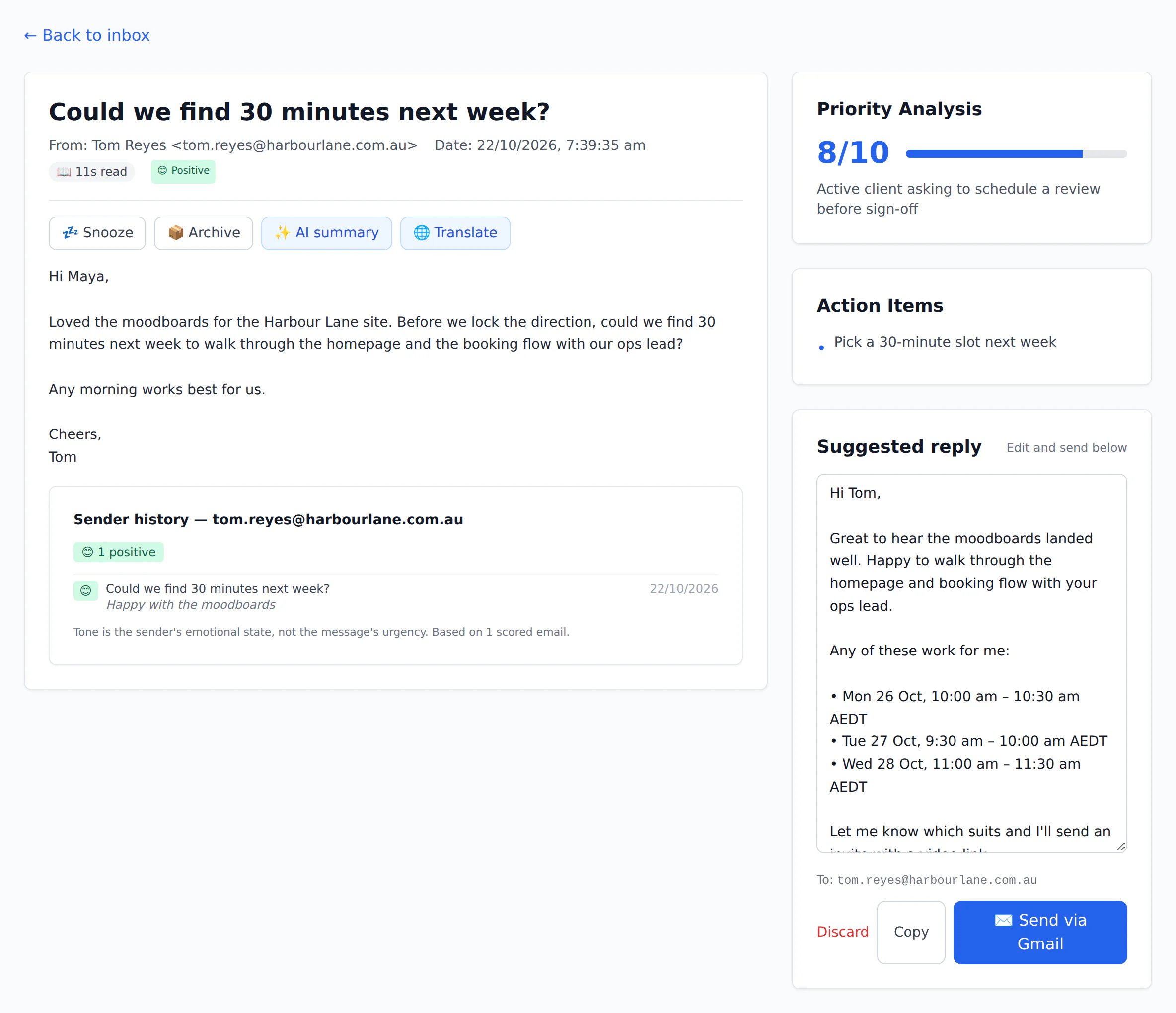
Open the first one. The reply is already written.
The reason it scored 9 is right at the top, and the draft below uses your tone and your own facts. Edit a word, send, next.
- 07:06
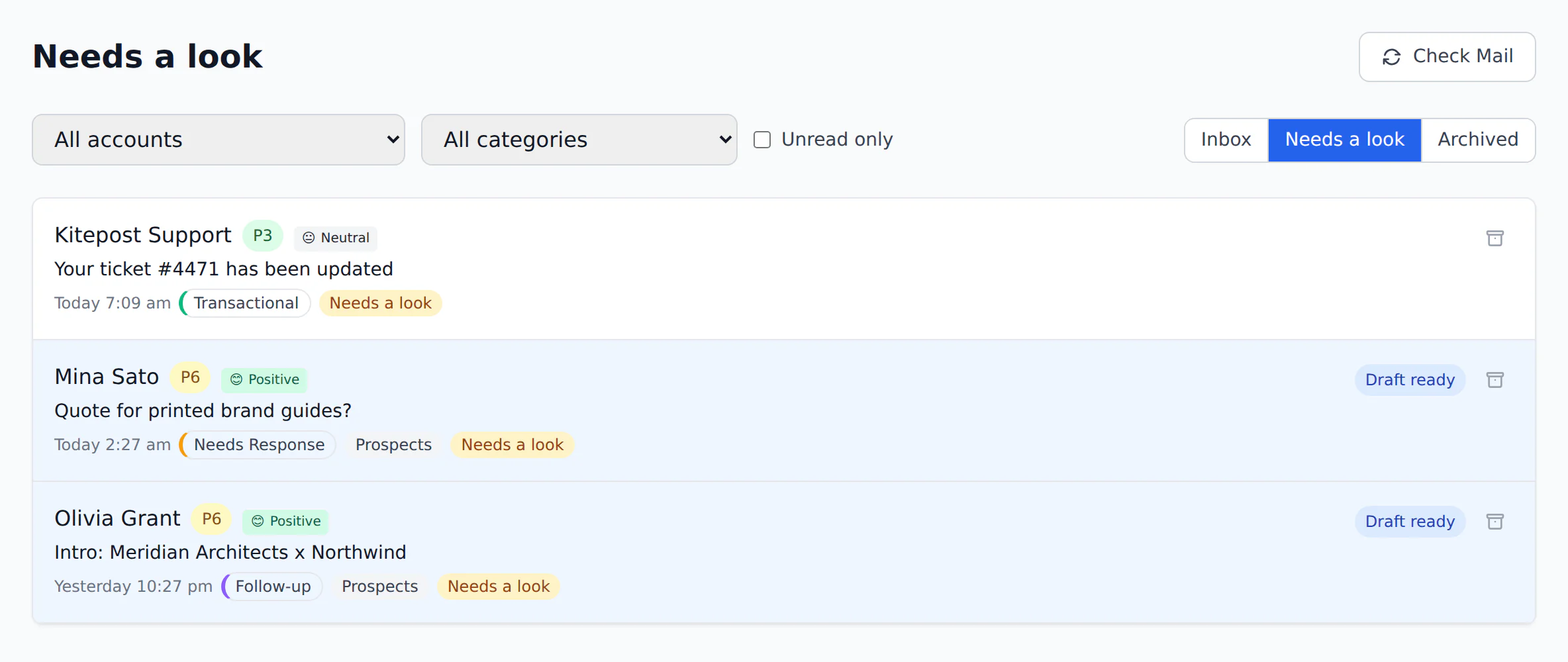
The unclear ones wait for you
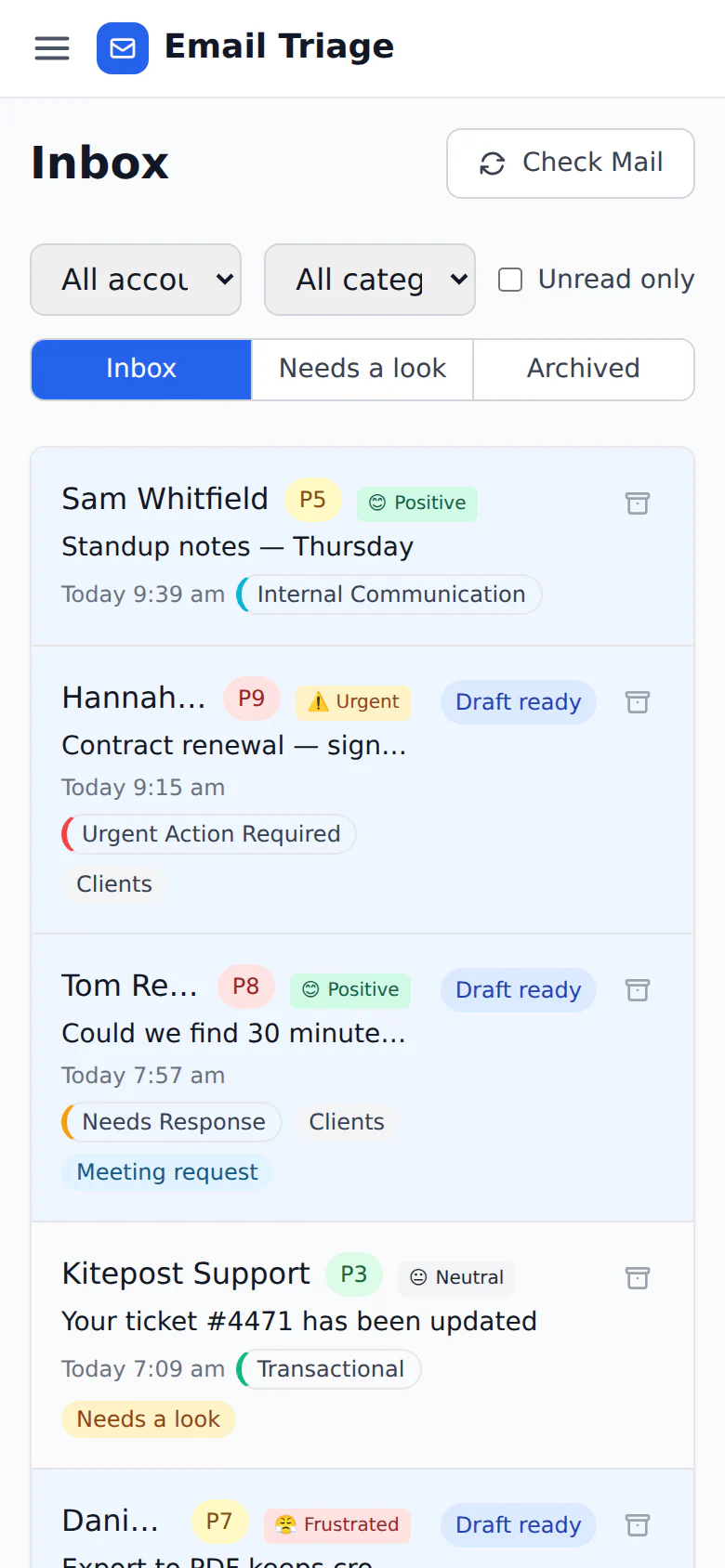
Anything ambiguous, legal, financial or delicate is flagged “Needs a look”. It is never archived or answered automatically.
- 07:09
Everything else is already filed
Receipts under Finance, pitches under Cold Outreach, newsletters archived. In Gmail and Outlook too, not just in this app.
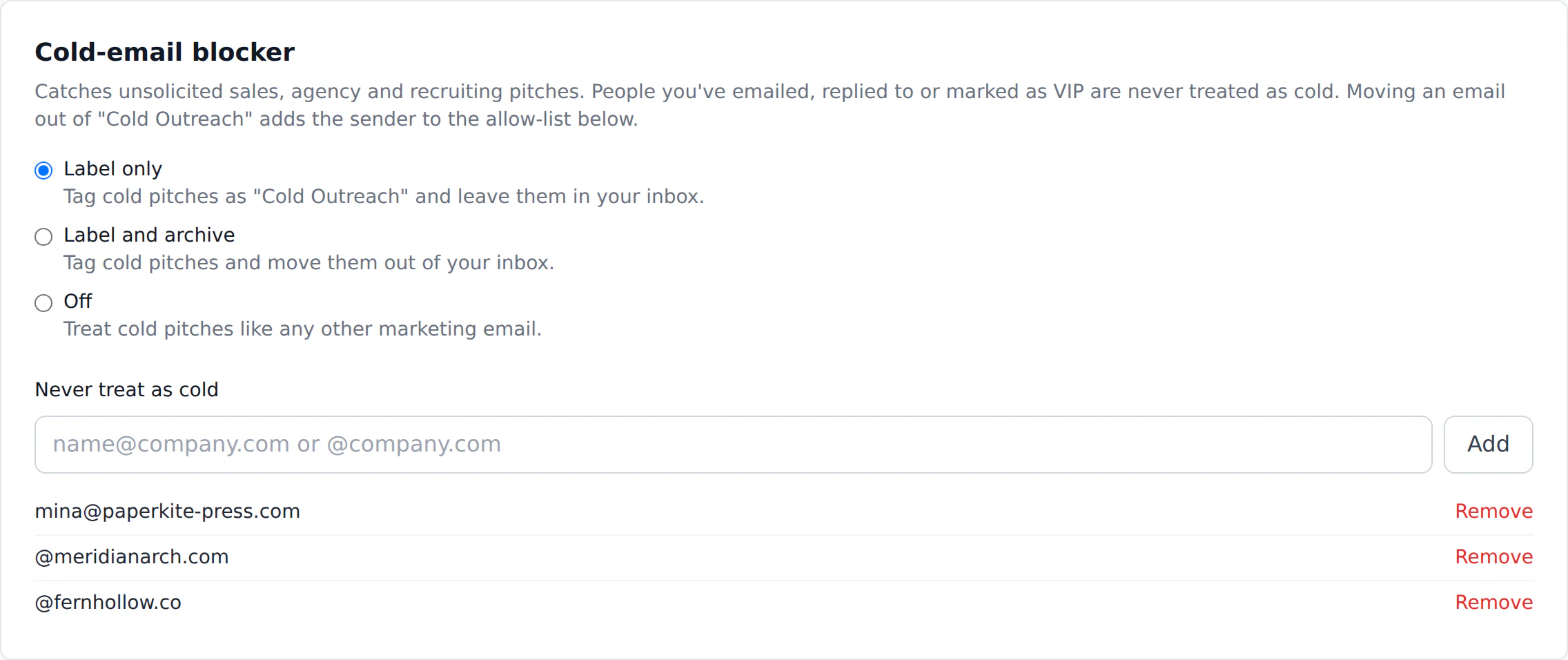
Ten jobs it takes off your hands.
Each one is a switch. Turn on what helps, leave the rest. Nothing changes in your mailbox until you say so.
- 01All plans
A priority score, with the reason
Every email gets a 1–10 score and one plain sentence explaining it, so you can trust the order instead of second-guessing it.
- 02All plans
Labels in your real Gmail and Outlook
Results show up where you already read mail: Email Triage/… labels in Gmail, categories in Outlook, and archived mail leaves your inbox.
- 03All plans
One short email each morning
A digest at the hour you choose: what is urgent, what needs a reply, and how much low-value mail was cleared away.
- 04Pro
Cold pitches, filed away
Unsolicited sales, agency and recruiting emails are spotted and labelled or archived. Anyone you have emailed before is never caught.
- 05Pro
Rules in plain English, tested first
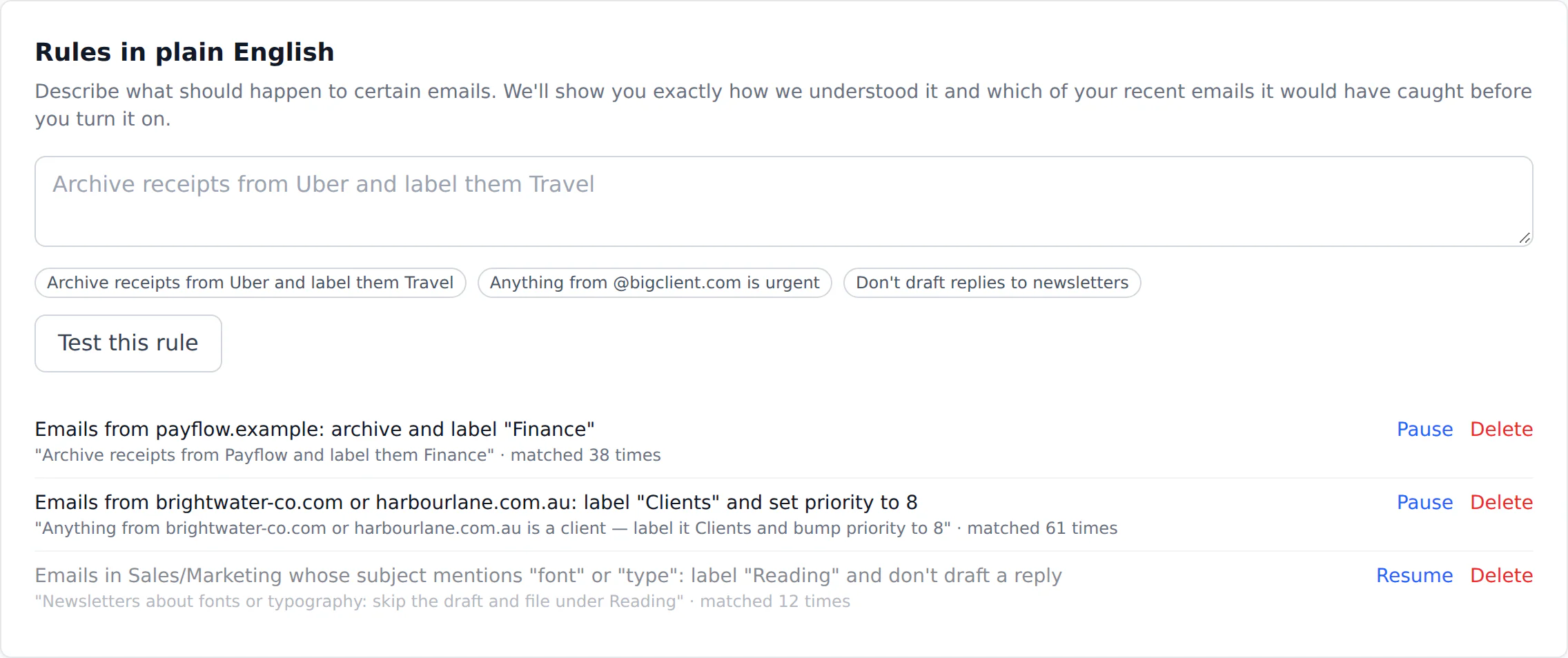
Write “archive receipts from Payflow and label them Finance”. See exactly which of your recent emails it would have caught before switching it on.
- 06Pro
Drafts in your voice, with your facts
Replies are written the way you write, using your own prices, policies and FAQ instead of guesses.
- 07Pro
“Needs a look” when the AI isn’t sure
Ambiguous, legal, money and HR emails are flagged for you and never archived or answered automatically.
- 08Autopilot
Meeting requests answered with real times
When someone asks for a call, the draft offers three free slots from your Google Calendar, inside your working hours.
- 09Autopilot
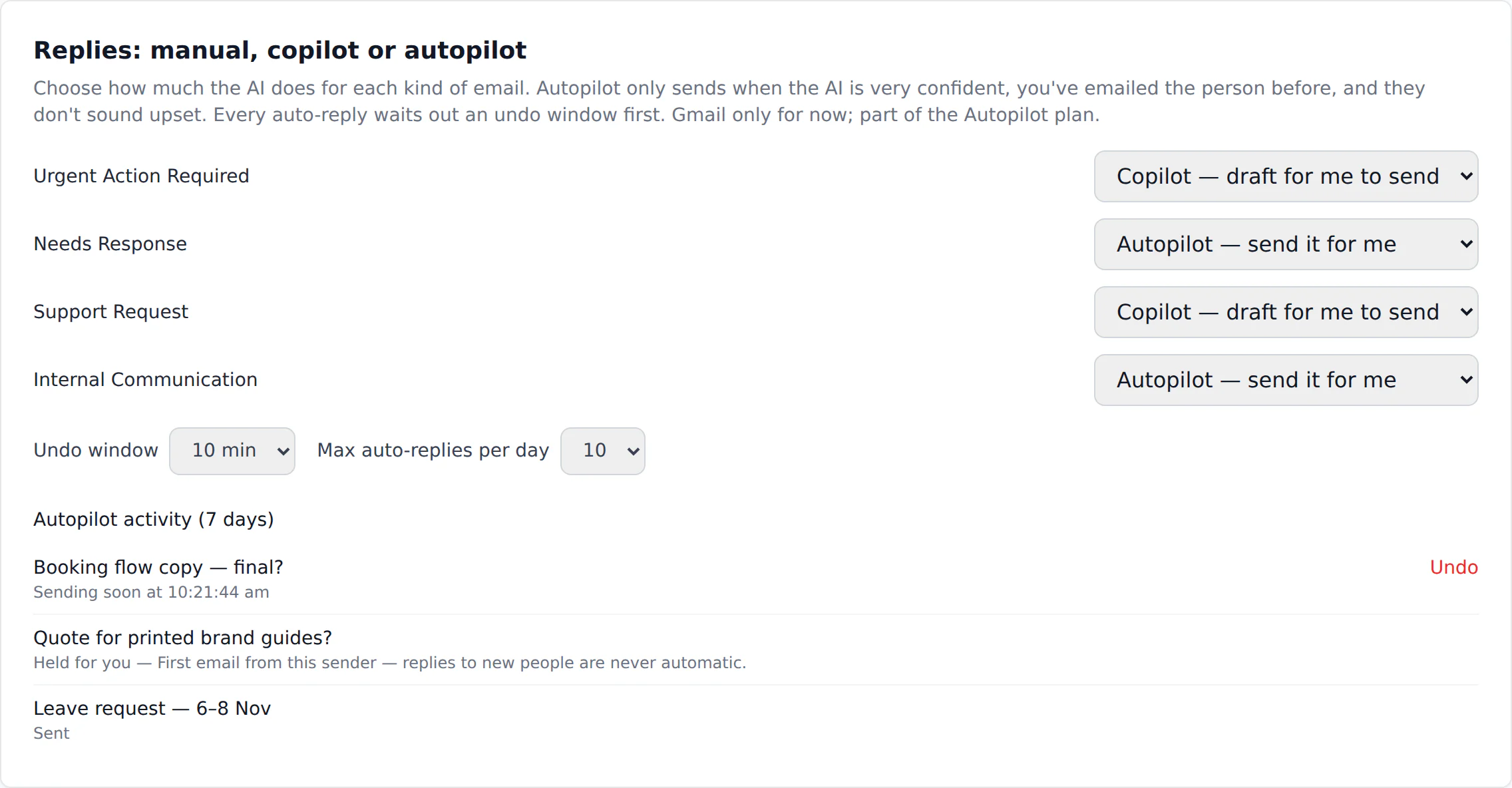
Autopilot, with guardrails
Routine replies to people you know can go out on their own after an undo window. Eight checks must pass first. Gmail accounts.
- 10Autopilot
Telegram and your AI assistant
Urgent alerts in Telegram, and an MCP server so Claude or Cursor can read your triaged inbox when you ask.
It answers the easy ones. Carefully.
“Thanks, Thursday works” doesn’t need you. A contract dispute does. Autopilot only sends when every one of these is true, and it tells you why when it holds back.
- Only categories you chooseOff by default. Urgent and sales mail can never be answered automatically.
- Very high confidenceThe AI must be at least 85% sure, and the email can’t be flagged “Needs a look”.
- Only people you knowFirst emails from new senders always wait for you.
- Never to an upset senderFrustrated or pressured tone sends it back to you.
- An undo windowEvery reply waits 2 to 60 minutes, your choice, with an Undo button.
- A daily limitA hard cap on auto-replies per day. Ten unless you change it.
- Stops if you step inSend your own reply or archive the email in Email Triage and the queued send is cancelled.
- Everything loggedSent, held and cancelled replies are listed with the reason.
Tell it how you work, in your own words.
Type a rule the way you’d say it. You’ll see it restated in plain English and every recent email it would have caught, before it’s switched on.
Three steps. About five minutes.
- 1
Connect your mailbox
Sign in with Google or Microsoft. We never see your password, and you can disconnect any time.
- 2
Choose what it may do
Labels in Gmail, the digest, the cold-email blocker: each is a switch in Settings.
- 3
Read tomorrow’s digest
New mail is triaged within five minutes, and a short checklist in the app walks you through the rest.
Your email is yours.
We read your mail to sort it for you, and for nothing else. Here is exactly what that means.
Never used to train AI
Not by us, and not by Anthropic under its commercial API terms.
Every permission explained
The exact Google and Microsoft scopes we ask for, and what each one is for.
Every AI prompt published
Byte-for-byte, with a fingerprint, on our transparency page.
Gone when you leave
Disconnect and your stored mail is removed within 30 days.
Start free. Upgrade when it earns it.
Free
50 emails / month- One mailbox
- Scores, categories, drafts
- Gmail labels and the daily digest
Pro
1,500 emails / month- Every mailbox you have
- Rules, cold-email blocker
- Drafts that use your own facts
Autopilot
4,000 emails / month- Safe automatic replies
- Calendar times in drafts
- Telegram alerts and MCP
Does it send emails without asking me?
Not unless you switch Autopilot on, and only for the categories you pick. By default every reply is a draft that waits for you.
With Autopilot on, a reply only goes out to someone you have emailed before, when the AI is very confident, the sender isn’t upset, and after an undo window you set.
Will it change my Gmail or Outlook?
Only if you turn on mailbox sync. Then it adds labels that start with “Email Triage/” (categories in Outlook) and archives what you archive in the app.
It never deletes mail, never touches labels you made, and never moves mail you archived yourself back into the inbox.
Is my email used to train AI?
No. Email content is sent to Anthropic’s API only to triage and draft for you, and under Anthropic’s commercial terms API data isn’t used to train their models. We don’t train anything on it either.
Which email accounts work?
Gmail, Google Workspace, Outlook.com and Microsoft 365. You can connect several and see them in one inbox. Autopilot and calendar suggestions currently need a Gmail account.
What happens when I hit my monthly limit?
New mail still syncs and shows in your inbox; it just isn’t scored or drafted until the next month or until you upgrade. Nothing is lost.
Can I use my own Anthropic API key?
Yes. Add it in Settings and the AI calls are billed to your Anthropic account, which drops Pro to $12 a month and Autopilot to $29. The key is encrypted at rest and never shown again.
How do I stop it or delete my data?
Disconnect a mailbox in Settings, or revoke access from your Google or Microsoft account page. When you delete your account or disconnect a mailbox, the stored data is removed within 30 days.
Google warned me the app is unverified. Is that normal?
Google shows that screen for apps that haven’t yet completed its verification for Gmail access. If you see it, choose “Advanced” to continue. Every permission we ask for, and why, is listed on our Trust page.
Notes on a calmer inbox.
What are the best Gmail filters to set up for a busy inbox?
Set up these five essential Gmail filters for newsletters, notifications, tools, social, and CCs to instantly clear 90% of your inbox noise.
Read ProductivityRescue your 500-email inbox in 90 minutes
A practical, step-by-step system to triage a massive email backlog and regain control of your inbox without anxiety.
Read ProductivityUnsubscribe or Filter? Here's How to Actually Decide
Stop guessing whether to unsubscribe or filter your emails. A clear decision rule to declutter your inbox and reclaim your focus.
ReadTomorrow morning, start with the short list.
Free for 50 emails a month. No card needed.